
Reading my agent's markdown from an iPhone without a sync stack
Hermes Agent writes plans and research on a dedicated Mac Mini. I wanted to read them from Safari on my iPhone while away from my desk, but a two-way sync setup kept breaking. markserv gave me a minimalist, read-only lens instead.
Context & Setup
I run Hermes Agent 24/7 on a dedicated Mac Mini sitting in the corner of my workspace. Every day, the agent runs research tasks, drafts plans, and outputs markdown (.md) reports. These files are saved directly inside their respective project directories on the Mac’s hard drive.

This wouldn’t be an issue if I were always sitting in front of my monitor. But I frequently need to read, review, and check these field notes from my iPhone—whether I’m out getting coffee, on the move, or in bed before sleeping.
This setup has two hard constraints:
- The Mac Mini is intentionally detached from my primary Apple account and personal iCloud to keep agent automation strictly private.
- I wanted to keep files exactly where they are. I refused to force every project into one giant shared directory just to satisfy a mobile app.
The Obstacles
Since the files are plain markdown, I defaulted to Obsidian on iOS. I immediately tried to set up file synchronization between the Mac Mini and my phone.
First, I tried the Remotely Save plugin, paired with an internal WebDAV server on the Mac Mini over my Tailscale network. The sync permanently hung on “Never Synced.” After some digging, I traced the failure to an encrypted configuration file format in data.json introduced in a recent update. It was silently crashing the iOS sync scheduler.
Next, I escalated to a heavier setup: Obsidian LiveSync with CouchDB. It worked for a few hours, then the mobile client drifted out of sync. Trying to re-key, re-authenticate, and manage replication states from a small iPhone screen database manager was a nightmare.
I realized I had fallen into a classic trap: I was forcing a heavy, two-way editing and layout engine (Obsidian Sync) onto a simple read task.
The moment I stripped away the famous tool names and looked at the core requirements, the problem shrank:
- Read markdown files cleanly from an iPhone.
- Leverage the existing Tailscale connection.
- Leave plain
.mdfiles in their working folders without altering project structures. - Zero complex synchronization systems to maintain.
The Shift: Symlink Lens
I handed these minimalist constraints to Hermes Agent. It returned markserv—a tiny Python preview server by Nathan Gage that renders directory trees of markdown in a web browser.
Instead of syncing files, the new workflow is incredibly simple:

- The Agent’s Job: Whenever Hermes Agent produces a new file during work, a lightweight watcher script (
fswatch) automatically populates a symbolic link (symlink) in a centralized directory called~/.markserv-root/. - The Lens: This folder functions as a “lens”—pointing to files across my computer without actually moving, duplicating, or altering the originals.
- The Human’s Job: On my iPhone, I just turn on Tailscale, open Safari, and go to the Mac Mini’s local IP address and port. I get a clean, rendered folder tree. I tap, I read.
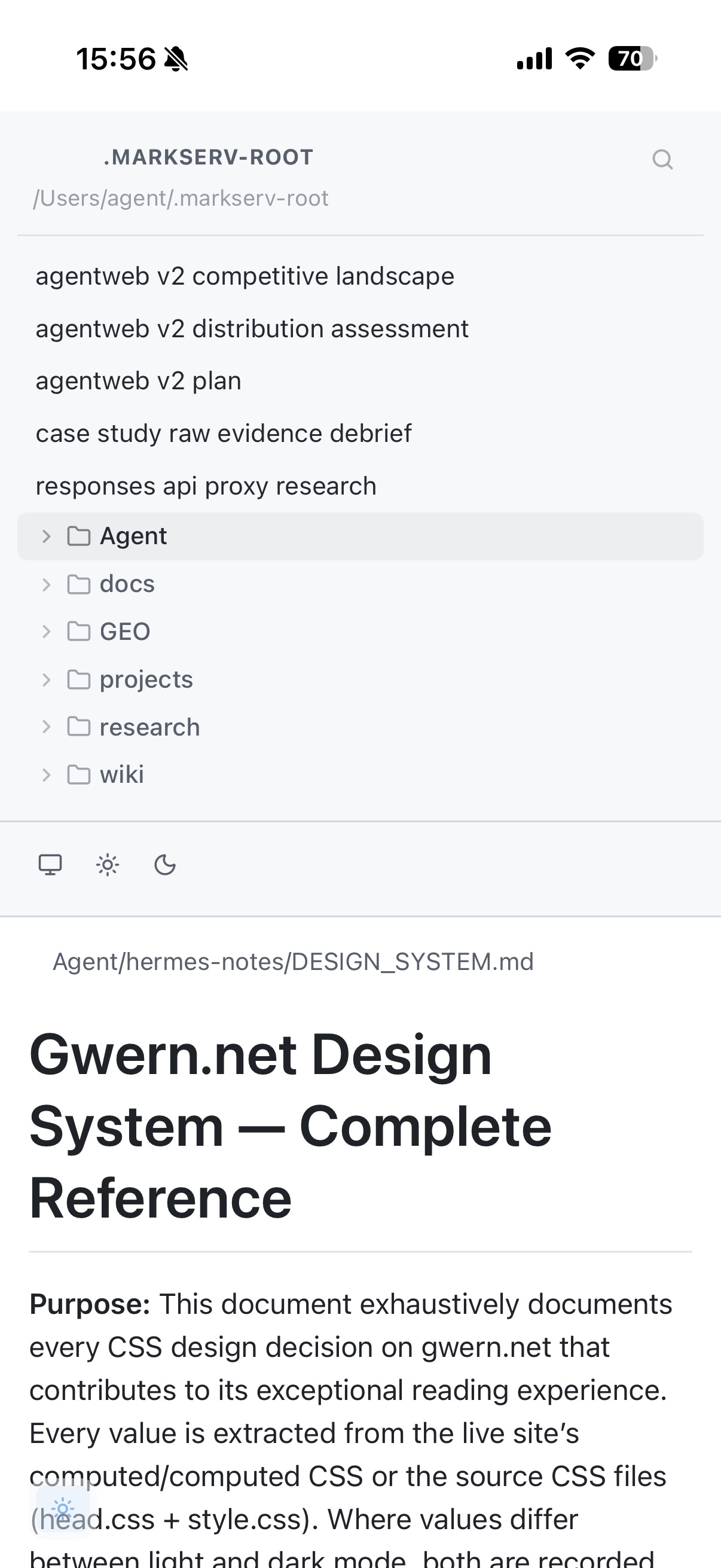
The entire setup took under 60 seconds of agent time to build and verify. It has run silently, reliably, and with virtually zero resource overhead ever since.
The Delegation Blueprint (Prompt)
If you have an autonomous agent running on a local machine or server and want to read its outputs on the go without writing terminal commands yourself, let your agent do the heavy lifting.
Copy this exact prompt and paste it directly into your terminal-capable agent’s chat:
Set up a read-only markdown mobile viewing system using `markserv` by performing the following steps:

1. Check and install `markserv` via Python/uv:
   - Run: `uv tool install markserv` (or `pip install markserv` if uv is unavailable).

2. Create a symlink lens directory to collect file paths:
   - Create: `~/.markserv-root`
   - Find my main markdown-producing directories (such as ~/projects, ~/notes, ~/research) and establish symlinks pointing them inside `~/.markserv-root`. Example: `ln -s ~/projects ~/.markserv-root/projects`.

3. Configure a persistent background service:
   - Create a background process or service manager (a LaunchAgent on macOS or systemd service on Linux) that runs:
     `markserv ~/.markserv-root --host 0.0.0.0 --port 8765`
   - Ensure the server automatically restarts if the host machine reboots.

4. Once done, report back with:
   - The local network IP and port (e.g., http://192.168.1.15:8765) to open on Safari.
   - The service status checking to confirm it is running silently in the background.
Using this blueprint, your hands stay clean of technical debt. You just click the link your agent spits back and enjoy the reading view.
Let’s Figure Your Workflow Out
Every environment and workflow has its own quirks. Maybe your server runs Windows, you prefer a different network config than Tailscale, or you are getting stuck on triggering automatic paths for new files.
If you want to spin up a friction-free viewing path like this but aren’t sure how to map it to your setup, let’s talk:
- Discord:
annguyen175(Or send a direct message via this link) - Email:
[email protected] - Facebook Discussion Group: vnhermesagent
Tell me how you represent your data, what hardware you drive daily, and where the process gets annoying. I’ll research it, set it up on my hardware first to test, and return with a tested, robust blueprint for you.